Documentation Index
Fetch the complete documentation index at: https://trunk-4cab4936-docs-direct-product-links.mintlify.app/llms.txt
Use this file to discover all available pages before exploring further.
Create a Trunk account
Welcome to Trunk! Before you can access Trunk’s toolkit to ship faster, you must create a Trunk account. You can connect to Trunk in two ways:- Connect with OAuth using your Google, GitHub, or Microsoft account.
- Connect with SSO through your organization’s email. To configure SSO for your organization, please contact us or join us on Slack.
Create an Organization
After creating a Trunk Account, you’ll be invited to create an organization. Organizations are shared workspaces for your team, and individual repositories connected to Trunk will fall under your team’s organization.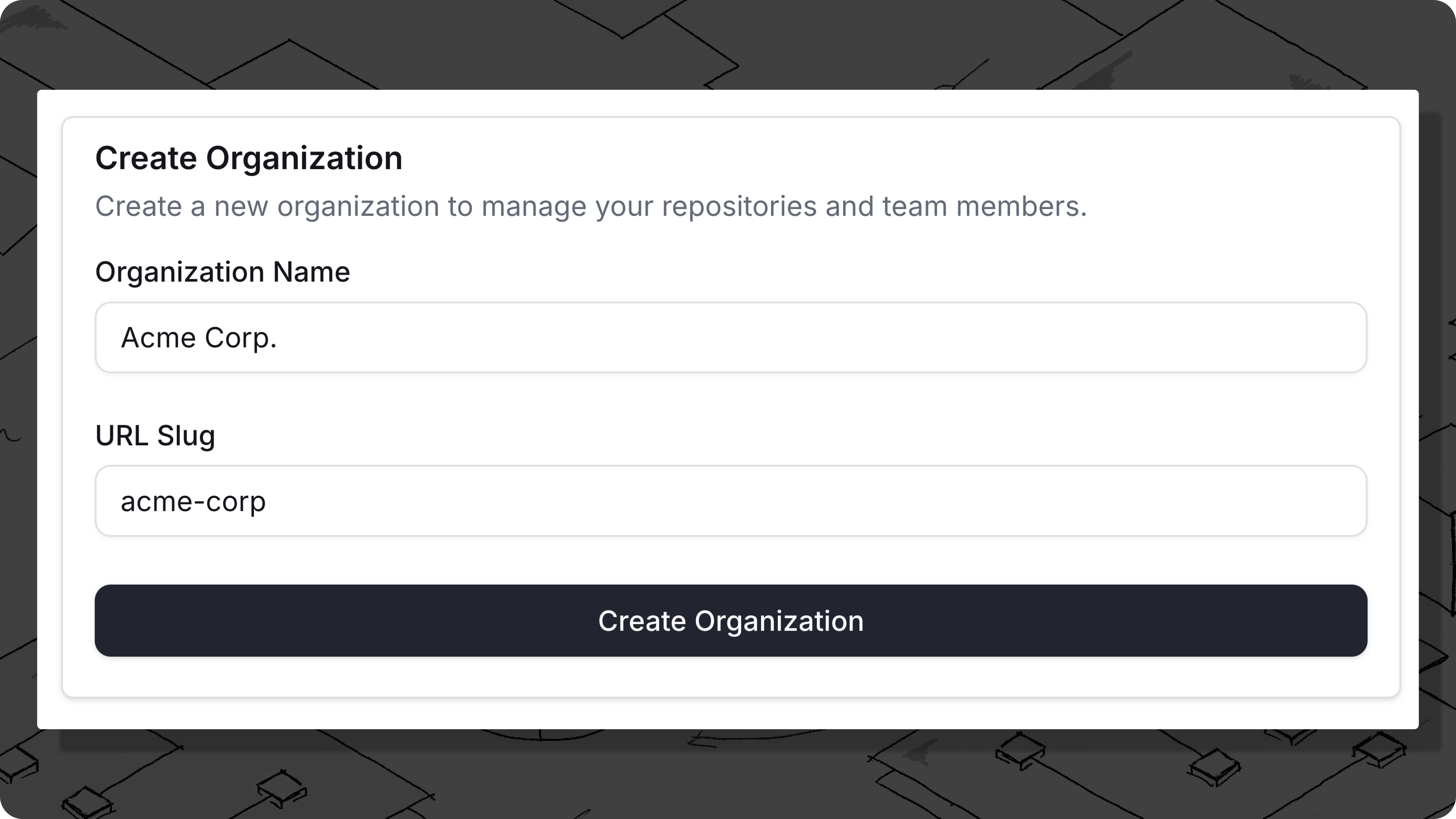
- Workspace Name: This is the display name of your organization. This can be changed later.
- URL Slug: This is the link to access your workspace and also your Organization Slug. This cannot be changed.
Start using Trunk
After connecting to Trunk, you’re ready to get started.Direct product links
You can link directly to a product without knowing your organization slug. These shortcuts route you to the product page for your current organization, or prompt you to pick one if you have not yet selected an organization:| Shortcut | Destination |
|---|---|
app.trunk.io/merge-queue | Merge Queue |
app.trunk.io/flaky-tests | Flaky Tests |
app.trunk.io/cloud | Trunk Cloud |
app.trunk.io/flaky-tests?tab=history land on the right view. Use these shortcuts when sharing links in docs, issues, or chat where the recipient’s organization slug is unknown.
Next steps

Flaky Tests